* All product/brand names, logos, and trademarks are property of their respective owners.
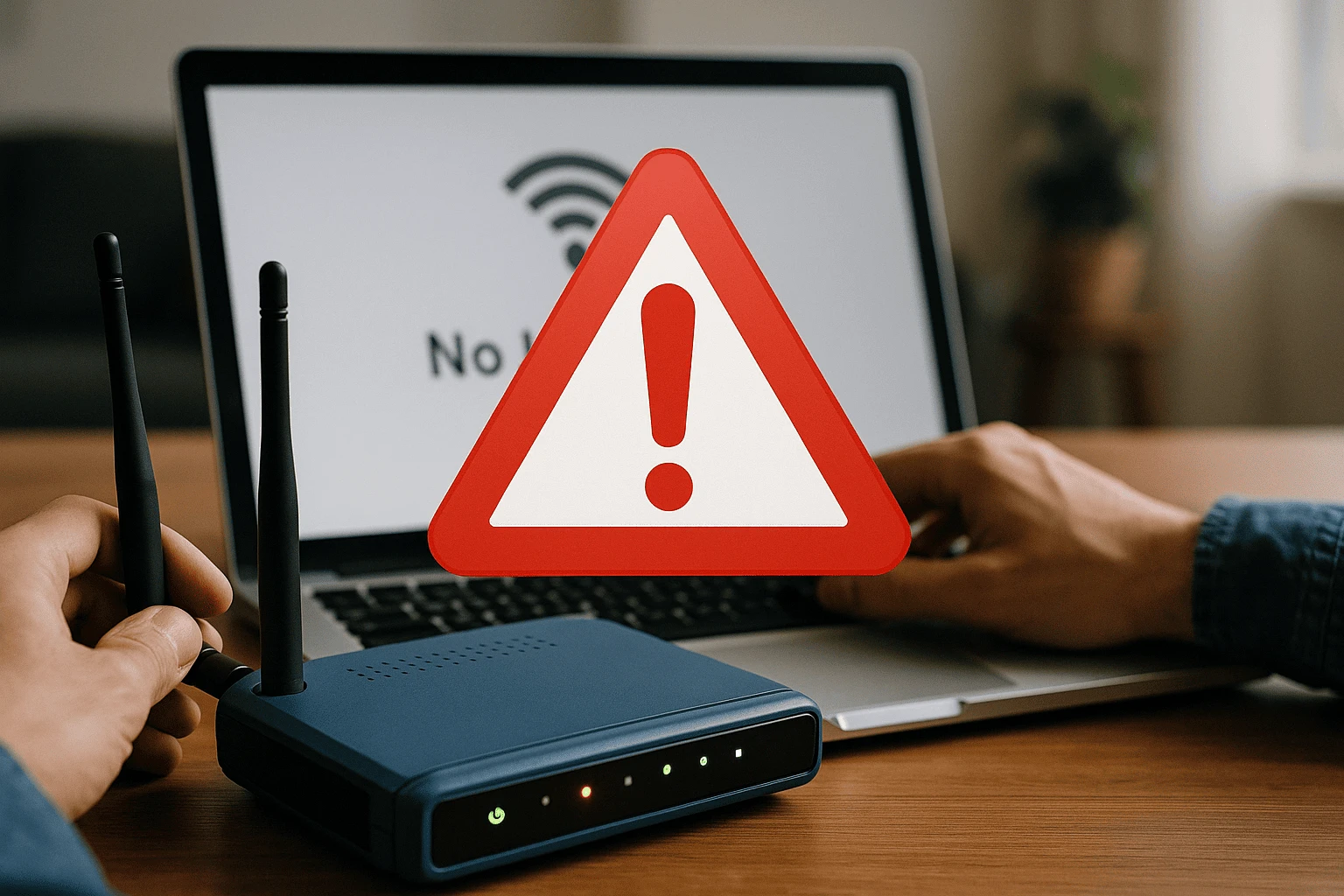
In today’s hyper-connected world, losing access to the internet—even for a few minutes—can feel like a disaster. Whether you're working remotely, streaming your favorite show, gaming online, or attending virtual meetings, a stable WiFi connection is absolutely essential. Yet, despite major advancements in Windows OS over the years, many users still face frustrating WiFi issues. Sound familiar?
If you're struggling with frequent disconnections, slow speeds, or Windows simply refusing to connect to your wireless network, you're not alone. These issues are especially common after system updates, driver conflicts, or even power settings interfering with your network adapter. And with the 2025 update cycles for Windows 10 and Windows 11, more users than ever are reporting strange network glitches they can’t explain.
That’s exactly why we created this ultimate troubleshooting guide.
Whether you're a casual user trying to stream Netflix or a developer needing rock-solid connectivity for deployments and downloads, this blog will walk you through every essential fix. We’ve structured it for all levels of experience, starting from simple checks to advanced system-level solutions. No need for guesswork — just follow the steps and your connection will (most likely) be back online in no time.
This guide includes:
Common WiFi symptoms and what they mean
Easy-to-follow Windows 10 and 11 fixes
Advanced network reset and driver repair steps
Real-world examples and power-user tips
So grab a coffee, and let’s fix that WiFi.
Despite being one of the most widely used operating systems globally, Windows still struggles with persistent WiFi issues across different versions—especially Windows 10 and 11. These problems can stem from outdated drivers, misconfigured settings, system bugs, or even simple user oversights. Let’s look at the most common connectivity issues that users face.
One of the most frustrating problems is when your Windows PC keeps disconnecting from the WiFi or shows “Connected, No Internet.” This often happens due to:
A weak signal or interference
Faulty router configurations
Power-saving features turning off the WiFi adapter
IP address conflicts or DHCP issues
It’s common for users to experience this problem after a Windows Update, where network drivers might get corrupted or replaced with incompatible versions.
Another widespread issue is a stable connection that delivers painfully slow internet speeds. Your browser loads forever, and even lightweight apps time out. Causes might include:
Background processes hogging bandwidth
Outdated drivers
Misconfigured DNS settings
Malware or firewall restrictions
Many users notice speed drops on Windows after installing third-party antivirus software or VPNs, which can interfere with normal traffic routing.
If your Windows laptop doesn’t even show your network, the problem may lie in:
Disabled WiFi adapter
Airplane mode being accidentally enabled
Router not broadcasting SSID
Driver or system-level corruption
This problem can make troubleshooting especially difficult because it prevents you from even attempting a connection.
Now that we’ve covered the most common WiFi problems, let’s get into action. This section walks you through practical steps to fix your Windows 10 or Windows 11 connectivity issues. Whether it’s a minor glitch or a stubborn bug, these proven techniques often solve the problem without needing deep technical knowledge.
Windows has a built-in diagnostic tool that can automatically detect and fix many network issues.
Press Windows + I to open Settings.
Go to System > Troubleshoot > Other troubleshooters (Windows 11) or
Update & Security > Troubleshoot (Windows 10).
Click Internet Connections > Run the troubleshooter.
This tool checks for issues with your network adapter, IP configuration, and more. It’s the easiest first step and often flags the root of the problem.
Before diving into system-level fixes, double-check simple things:
Make sure Airplane Mode is off: Click on the network icon in the taskbar and verify.
Ensure your WiFi adapter is enabled:
Go to Control Panel > Network and Sharing Center > Change adapter settings, and check if WiFi is active.
Restart your router and PC: A quick reboot clears temporary glitches in both devices.
You’d be surprised how many connectivity issues resolve after these basic checks.
If problems persist, it’s time to reset your network stack using the Command Prompt.
Open Command Prompt as Administrator.
Type the following commands one by one:
netsh winsock reset
netsh int ip reset
ipconfig /release
ipconfig /renew
ipconfig /flushdns
Restart your PC after running all commands.
These commands reset your network configuration, release/renew IP settings, and flush DNS caches—solving issues caused by corrupted settings or cached data.
If basic troubleshooting doesn’t fix your WiFi problems, it’s time to dig deeper. These advanced fixes target deeper system components such as drivers, registry settings, and system recovery options. Proceed carefully—while these steps are effective, incorrect execution can cause system instability.
Sometimes the network adapter driver is outdated or corrupted—especially after a Windows update. Here’s how to update or reinstall it:
Press Windows + X, then select Device Manager.
Expand Network adapters and right-click your WiFi adapter.
Choose Update driver > Search automatically for drivers.
In Device Manager, right-click your WiFi adapter and select Uninstall device.
Restart your PC—Windows will attempt to reinstall the driver automatically.
If that fails, download the latest driver from your laptop’s manufacturer website using an Ethernet cable or another device.
Power-saving features can disable your WiFi adapter to conserve energy, leading to intermittent issues.
Go to Device Manager > Network adapters.
Right-click your adapter > Properties > Power Management tab.
Uncheck “Allow the computer to turn off this device to save power.”
For advanced users, registry tweaks under:
HKEY_LOCAL_MACHINE\SYSTEM\CurrentControlSet\Services\Tcpip\Parameters
This can help reset or optimize the TCP/IP stack manually—but backup your registry before editing.
If your WiFi worked fine a few days ago, a recent system change may be the culprit.
Press Windows + R, type rstrui, and hit Enter.
Follow the prompts to restore your system to a working state.
Restart your PC and press F8 or hold Shift + Restart to access Advanced Startup Options.
Select Safe Mode with Networking and test WiFi performance.
If WiFi works in Safe Mode, a third-party app or driver may be interfering in normal mode.
WiFi Troubleshooting problems on Windows doesn’t have to be a tech nightmare. With the right approach, even the most stubborn connectivity issues can often be resolved in a matter of minutes. From basic steps like checking hardware and restarting your router to more advanced fixes like driver reinstalls and system restores, you now have a complete roadmap to your internet connection fix.
Whether you're a casual user frustrated by dropped connections or a power user needing consistent network performance for remote work or gaming, this guide equips you with practical, proven solutions. And because we’ve focused on both Windows 10 and Windows 11, you can confidently apply these fixes no matter which version you're running in 2025.
Remember, start with the simple stuff—many issues can be resolved by running the built-in Windows troubleshooter or flushing your DNS. If problems persist, don’t hesitate to dive into advanced steps. Just ensure you proceed carefully and back up any critical settings before making changes.
Still stuck? Drop your question in the comments or reach out—tech support communities (including ours!) are always here to help.
Bookmark this guide for future reference, and share it with friends or colleagues who might be facing the same WiFi woes. Let’s keep everyone connected!

Waqar Azeem is a digital marketing and web development specialist who bridges the gap between marketing and engineering. On the marketing side, he works extensively with Google Ads, Google Merchant Center, and Google Analytics — managing campaigns, product feeds, and conversion tracking to help businesses grow their online visibility and sales. On the development side, he builds and maintains web applications using Yii2 and Next.js, giving him a rare ability to handle both the technical infrastructure and the marketing performance of a website. This combined skill set lets him approach projects holistically, ensuring that what gets built is also built to perform.
AI assistants are changing how people discover and use websites. Users may not always click through
4 June 2026
Free coding tutorials have changed the way people learn programming. Earlier, becoming a developer o
9 May 2026
Technology never stands still — and as we move through 2025 into 2026, it’s evolving fas
21 January 2026
Be the first to share your thoughts
No comments yet. Be the first to comment!
Share your thoughts and join the discussion below.



.webp&w=3840&q=75)