Pir Gee

Tech Tutorials
Tech News & Trends
Dev Challenges
AI & Machine Learning
Cyber Security
Developer Tools & Productivity
API's & Automation
UI/UX & Product Design
FinTech
SEO
Web 3.0
Software Comparisons
Tools & Work Flows
Friday, April 17, 2026
Pir Gee
Pir Gee

Pir Gee is your one-stop platform for insightful, practical, and up-to-date content on modern digital technologies. Covering programming languages, databases, REST APIs, web development, and more — we bring you expert tutorials, coding guides, and tech trends to keep developers, learners, and tech enthusiasts informed, skilled, and inspired every day.

Follow us

Categories

  • Tech Tutorials
  • Tech News & Trends
  • Dev Challenges
  • AI & Machine Learning
  • Cyber Security
  • Developer Tools & Productivity
  • API's & Automation
  • UI/UX & Product Design
  • FinTech
  • SEO
  • Web 3.0
  • Software Comparisons

Policies

  • About
  • Get inTouch Pir Gee
  • Privacy Policy
  • Terms & Conditions
  • Disclaimer

Newsletter

Subscribe to Email Updates

Subscribe to receive daily updates direct to your inbox!

*We promise we won't spam you.

*All content on Pir Gee is for educational and informational purposes only.

© 2026 Pir GeebyBytewiz Solutions

HomeTech News & TrendsMicrosoft Windows Update Warning – What’s Safe and What’s Not

Microsoft Windows Update Warning – What’s Safe and What’s Not

ByZeenat Yasin

15 April 2026

Microsoft Windows Update Warning – What’s Safe and What’s Not

* All product/brand names, logos, and trademarks are property of their respective owners.

1

views


FacebookTwitterPinterestLinkedIn

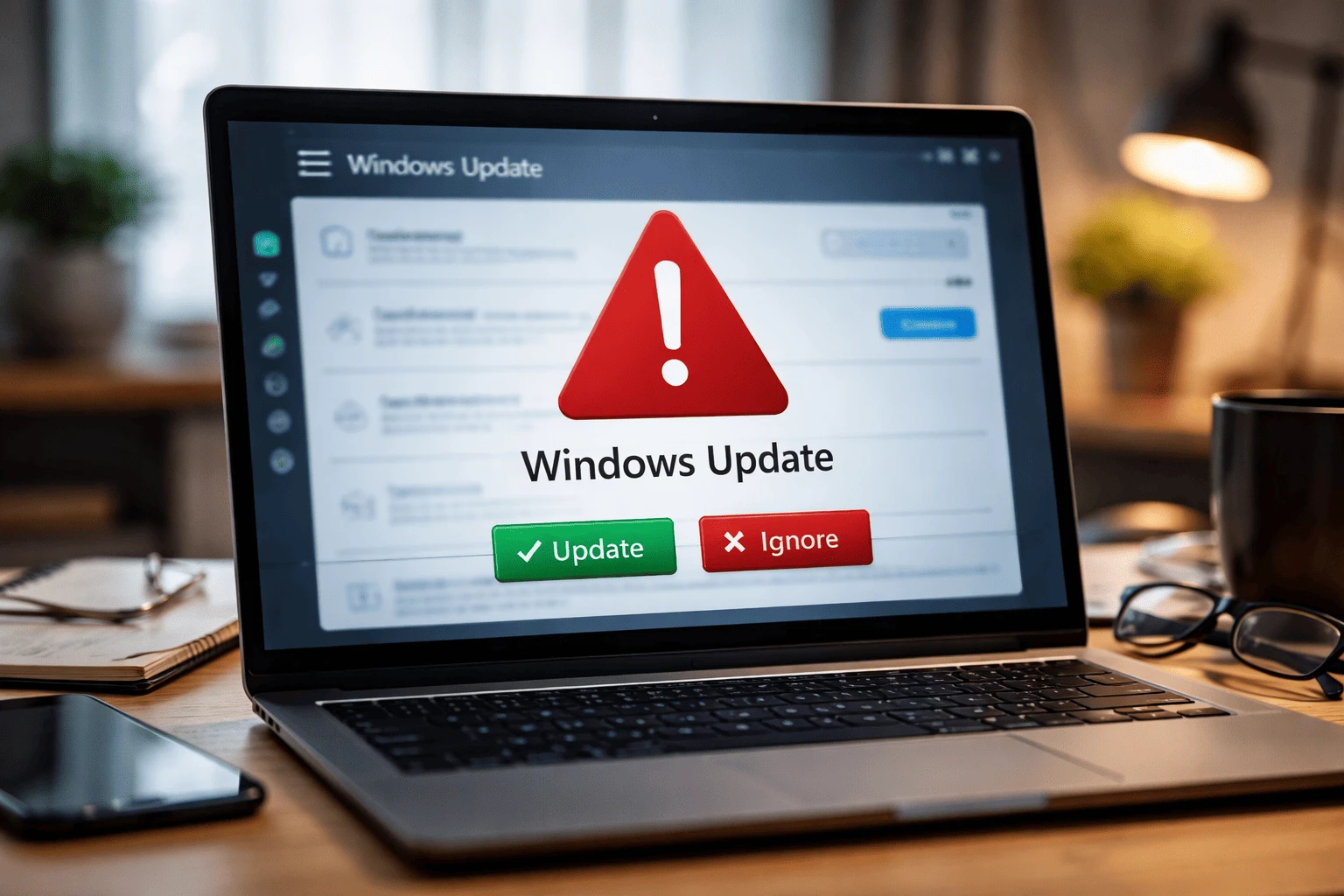
You’re working on your computer when suddenly a Windows update warning pops up. It might ask you to update immediately, download a file, or even call support. For many users, it’s hard to tell—is this a normal system alert, or something risky?

The confusion is understandable. While Microsoft regularly sends legitimate update notifications to keep your system secure, scammers have become increasingly good at copying these alerts. Fake warnings can look convincing, use official logos, and create a sense of urgency to trick users into clicking.

This guide breaks it down in a simple way. You’ll learn how to recognize a real Windows update warning, spot fake ones instantly, and know exactly what to do if something doesn’t feel right.

What Is a Windows Update Warning?

A Windows update warning is a system notification from Microsoft that alerts you about available updates for your computer. These updates can include security patches, bug fixes, performance improvements, or new features.

Most of the time, these warnings are completely normal—and important. They help keep your system protected from vulnerabilities and running smoothly.

Where you typically see real update warnings:

  • System notifications (bottom-right corner of your screen)
  • Inside Settings → Windows Update
  • During shutdown or restart (e.g., “Update and restart”)

Why does Windows send these warnings:

  • To fix security issues and protect against threats
  • To improve system performance and stability
  • To add or update features
  • To ensure compatibility with new software and hardware

A genuine Windows update warning is simply part of how your operating system stays up to date. It doesn’t try to scare you or rush you into taking unusual actions—it just guides you to update through the proper system process.

What a Real Windows Update Warning Looks Like

A real Windows update warning usually feels routine, not alarming. It appears as part of Windows itself and guides you to update through the normal system settings.

Here are the most common signs that an alert is legitimate:

  • It appears as a system notification, not a website pop-up
  • It directs you to Settings > Windows Update
  • The language is calm and practical, such as asking you to restart or install updates
  • It does not include a phone number
  • It does not ask you to download a file from a random site
  • It matches the normal Windows design and layout you usually see on your PC
  • It may appear during restart or shutdown with options like Update and restart or Update and shut down

A real warning is focused on keeping your device updated. It does not try to frighten you or pressure you into acting immediately outside the normal Windows process.

What a Fake Windows Update Warning Looks Like

Fake Windows update warnings are designed to create panic and push you into making quick decisions. They often look convincing at first glance, but there are clear signs once you know what to look for.

Here are the most common red flags:

  • It appears in a web browser instead of your system notifications
  • Uses urgent or scary language like “Your PC is infected” or “Immediate action required.”
  • Asks you to call a phone number for support
  • Prompts you to download a file from an unknown website
  • Redirects you to suspicious pages after clicking
  • Uses Microsoft logos but looks slightly off or exaggerated
  • Blocks your screen or makes it hard to close the window

Some fake alerts even loop audio warnings or prevent you from exiting the page easily, trying to pressure you into reacting quickly.

The key thing to remember: Microsoft does not send update warnings through random websites or ask you to call support from a pop-up.

Real vs Fake Windows Update Warnings (Quick Comparison)

 
Feature Real Warning Fake Warning
Source Windows system (Settings/notifications) Browser or unknown app
Language Neutral, informative Urgent, alarming
Action Required Restart or update via settings Call a number, download a file, click a link
Design Matches your system interface Slightly off or overly dramatic
Security Safe and official Potential scam or malware


A quick way to think about it: real warnings guide you, while fake ones pressure you.

If a message tries to rush you, scare you, or push you outside the normal Windows update process, it’s a strong sign something isn’t right.

Where Real Windows Updates Actually Come From

One of the easiest ways to stay safe is to know exactly where legitimate Windows updates originate. Real updates only come from official Microsoft, built into your system—not random websites or pop-ups.

The official source of Windows updates:

  • Settings → Windows Update (your main control center)
  • Updates delivered directly from Microsoft servers
  • Background automatic updates managed by Windows itself

How real updates work:

  • Windows periodically checks for updates automatically
  • You may see a notification asking you to restart or install updates
  • You can also manually check by going to Settings → Windows Update → Check for updates

Important things to remember:

  • You never need to visit a random website to install a Windows update
  • Microsoft does not send updates through pop-ups or ads
  • Updates are handled inside your system, not through your browser

If you ever feel unsure, the safest move is simple:
Open Windows Update in your system settings and check from there.

That’s the only place you need to trust.

Common Windows Update Scams You Should Know

Not all fake update warnings look the same. Scammers use different methods to trick users, and some are more convincing than others.

Here are the most common types you’re likely to encounter:

  • Fake “Microsoft Support” pop-ups
    These appear in your browser, claiming your system is at risk. They often include a phone number and urge you to call immediately.
  • Fake update download pages
    Websites that look like official Microsoft pages but ask you to download an “update” file. These files often contain malware.
  • Malicious software disguised as updates
    Some programs install themselves as “update tools” and pretend to manage your system updates while actually harming your device.
  • Email phishing alerts
    Emails claiming your system is outdated or at risk, with links to “update now.” These links usually lead to fake or harmful websites.
  • Full-screen lock scams
    These lock your browser or screen and display a warning message that’s hard to close, pushing you to take immediate action.

The common pattern is simple: they all try to create urgency and push you outside the normal Windows update process.

What To Do If You Already Clicked or Installed Something

If you’ve already interacted with a suspicious Windows update warning, don’t panic—but act quickly. A few simple steps can help reduce risk and secure your system.

Follow these steps immediately:

  1. Disconnect from the internet
    Turn off Wi-Fi or unplug your connection. This helps stop any potential data transfer or remote access.
  2. Run a full security scan
    Use Windows Security (Defender) or a trusted antivirus program to scan your entire system.
    • Choose a full scan, not a quick one
  3. Uninstall suspicious programs
    Go to:
    Control Panel → Programs → Uninstall a program
    Remove anything you don’t recognize or didn’t intentionally install.
  4. Delete suspicious downloads
    Check your Downloads folder and remove any unknown files, especially recent ones.
  5. Change your passwords
    Focus on important accounts:
  • Email
  • Banking
  • Social media
    Use a different device if you’re unsure about your PC’s safety.

Monitor your system behavior
Watch for:

  • Slower performance
  • Unknown apps running
  • Browser redirects
  • Unusual login alerts

If anything continues to feel off, consider getting professional help or resetting your system.

Simple Tips to Stay Safe From Fake Update Warnings

You don’t need to be a tech expert to avoid these scams. A few simple habits can make a big difference in keeping your system safe.

Here are some practical tips:

  • Always update through system settings
    Use Settings → Windows Update, not links or pop-ups
  • Never trust browser-based update alerts
    Real Windows updates do not come from websites
  • Avoid third-party update tools
    Stick to Microsoft’s built-in update system
  • Don’t click on urgent or scary messages
    If it pressures you, it’s likely fake
  • Use built-in security tools
    Keep Windows Defender or a trusted antivirus active and updated
  • Keep your system regularly updated
    This reduces security risks and makes scams easier to spot
  • Be cautious with emails and links
    Don’t click “update now” links in emails claiming to be from Microsoft
  • Help others stay informed
    Many scams target less tech-savvy users—sharing awareness helps prevent issues

Staying safe mostly comes down to one rule: trust the source, not the message.

Conclusion

A Windows update warning isn’t something to fear—but it is something to understand. Real alerts are part of your system and help keep your device secure, while fake ones try to trick you into acting quickly.

The difference comes down to where the warning appears and how it behaves. If it comes from your system settings, it’s likely safe. If it shows up in a browser, asks you to download something, or creates urgency, it’s best to stay away.

When in doubt, take a step back and verify through official Windows Update settings. That one habit alone can protect you from most scams.

Staying cautious doesn’t mean being paranoid—it just means being aware and in control.

Related New Phishing Scams Every User Must Avoid

Tags:Windows UpdateMicrosoft WindowsUpdate WarningWindows Update ScamsMicrosoftSystem Notifications
Zeenat Yasin

Zeenat Yasin

View profile

I am Zeenat, an SEO Specialist and Content Writer specializing in on-page and off-page SEO to improve website visibility, user experience, and performance.
I optimize website content, meta elements, and site structure, and implement effective off-page SEO strategies, including link building and authority development. Through keyword research and performance analysis, I drive targeted organic traffic and improve search rankings.
I create high-quality, search-optimized content using data-driven, white-hat SEO practices, focused on delivering sustainable, long-term growth and improved online visibility.

Related Posts

Google’s $135M Android Settlement: A Turning Point for Big Tech?Tech News & Trends

Google’s $135M Android Settlement: A Turning Point for Big Tech?

16 April 2026

The Secret Features of Web WhatsApp Nobody Talks AboutTech News & Trends

The Secret Features of Web WhatsApp Nobody Talks About

11 April 2026

Top 10 CES 2026 Gadgets Changing the Future of TechnologyTech News & Trends

Top 10 CES 2026 Gadgets Changing the Future of Technology

8 January 2026

AI, AR & Automation: What will  Really Shaping Tech in 2026?Tech News & Trends

AI, AR & Automation: What will Really Shaping Tech in 2026?

18 November 2025

Comments

Be the first to share your thoughts

No comments yet. Be the first to comment!

Leave a Comment

Share your thoughts and join the discussion below.

Popular News

Google’s $135M Android Settlement: A Turning Point for Big Tech?

Google’s $135M Android Settlement: A Turning Point for Big Tech?

16 April 2026

Top Fintech Trends to Watch in 2026

Top Fintech Trends to Watch in 2026

13 April 2026

The Secret Features of Web WhatsApp Nobody Talks About

The Secret Features of Web WhatsApp Nobody Talks About

11 April 2026

Fixing java.io.EOFException Error in Java Applications

Fixing java.io.EOFException Error in Java Applications

10 April 2026

Best UI/UX Design Principles Used by Top Designers in 2026

Best UI/UX Design Principles Used by Top Designers in 2026

9 April 2026

Why E-E-A-T Signals Matter More Than Ever for Modern SEO Success

Why E-E-A-T Signals Matter More Than Ever for Modern SEO Success

23 February 2026

5 Ways Fintech Is Disrupting Traditional Banks Right Now

5 Ways Fintech Is Disrupting Traditional Banks Right Now

23 February 2026

Designing for Retention: UX Strategies That Keep Users Coming Back

Designing for Retention: UX Strategies That Keep Users Coming Back

20 February 2026

How Smart APIs Are Powering Autonomous Workflows and Bots

How Smart APIs Are Powering Autonomous Workflows and Bots

20 February 2026

AI Agents for Code Generation: A Practical Guide for Developers

AI Agents for Code Generation: A Practical Guide for Developers

13 February 2026